The Windows Event Log Had an Answer — Sort Of
Digging into Windows Event Viewer finally produced something useful:
Faulting application: Photoshop.exe, version 27.7.0.11
Faulting module: OpenCLOn12.dll
Path: Microsoft.D3DMappingLayers_1.2606.3.0
Exception code: 0xc0000409
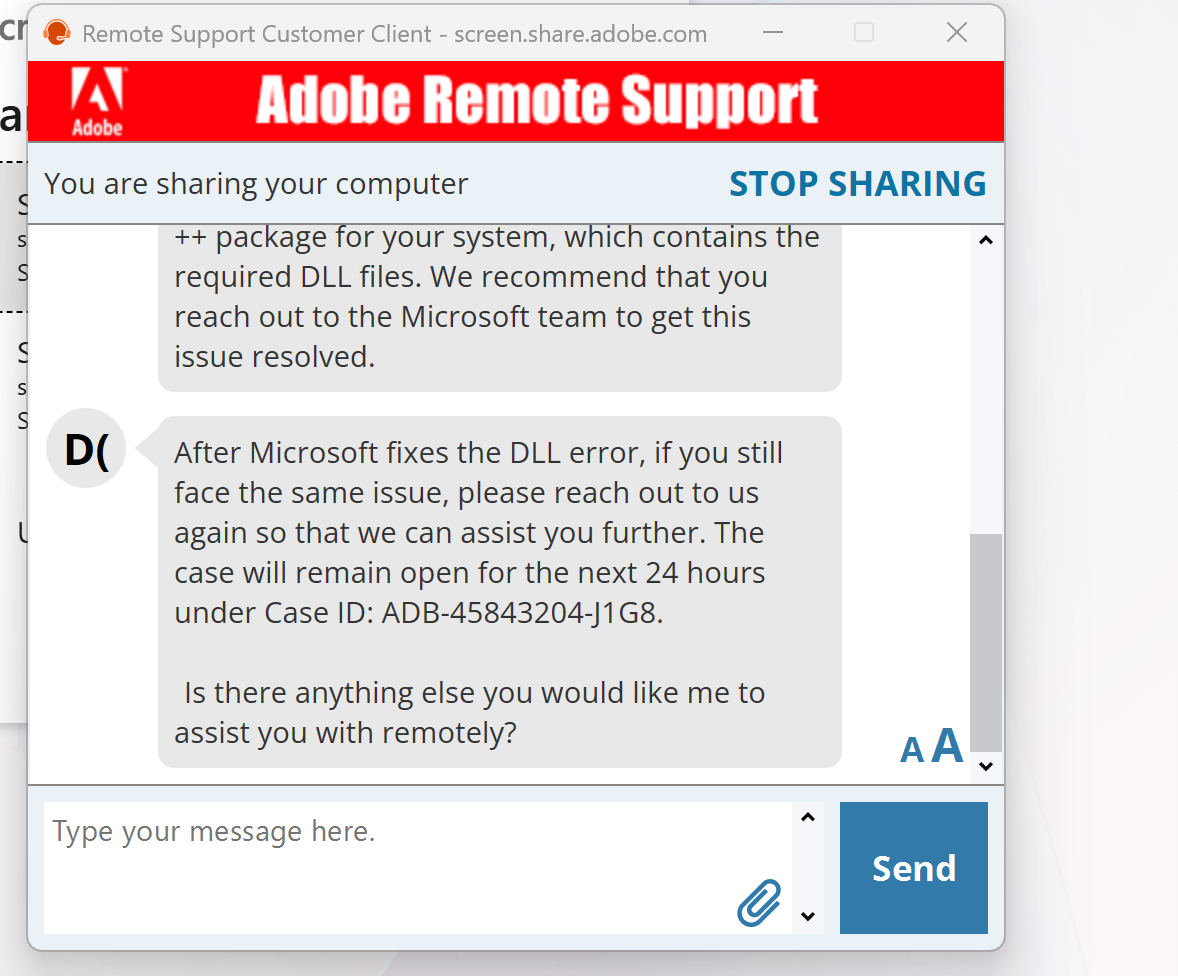
OpenCLOn12.dll. Not a Photoshop file. Not an Intel driver file. A Microsoft compatibility layer — the shim that translates OpenCL calls into DirectX 12, because Intel Arc GPUs ship with no native OpenCL runtime of their own.
Something was causing that layer to crash during Photoshop's GPU initialisation. But what had changed?
The Actual Culprit
Tracing back through recent changes — a display profile had been set to Display P3 during a colour test and simply left there.
Changing it back to sRGB in Windows Colour Management took thirty seconds.
Photoshop still didn't open.
This is the part most fixes online miss. Changing the colour profile alone isn't enough. The system needs a full reboot before Windows propagates that change through to the GPU driver stack. A Photoshop restart won't do it. A logout won't do it.
Reboot. Then open Photoshop.
It opened immediately.
Why a Colour Profile Crashes Photoshop at Launch
Here's what's actually happening — because understanding it matters if you want to avoid it.
When Photoshop starts, one of the very first things it does is read the active Windows system display ICC profile. It uses this to configure its GPU acceleration pipeline — matching its colour rendering to your display from the first pixel.
Display P3 signals a wide-gamut, likely 10-bit display. Photoshop responds by requesting a GPU surface format to match. That request goes through OpenCLOn12.dll — the D3D12 translation layer.
And that's where it dies.
The mapping layer either doesn't support the wide-gamut surface format being requested, or has a bug in that negotiation path. Either way, exception 0xc0000409 fires — a stack buffer overrun, Windows' own security check detecting a corrupted stack — and Photoshop never finishes initialising.
With sRGB or Adobe RGB, Photoshop takes a completely different, well-tested code path. Standard surface formats. No edge case. No crash.
Why This Is Easy to Miss — Especially After a Monitor Calibration
Display P3 as a Windows system colour profile is almost exclusively a Mac pattern. On Apple hardware it's the default — every modern Mac display ships with it. On Windows, almost nobody sets the system ICC profile to P3 intentionally.
Almost nobody — except photographers who have just calibrated their monitors.
Calibration software and ICC profiles from wide-gamut display manufacturers can sometimes write a P3-type profile as the active system profile, particularly on displays with a P3-capable panel. You finish your calibration session, your monitor looks great, you restart — and the next time Photoshop opens, it doesn't.
If Photoshop stops working right after a monitor calibration or recalibration session — this is the first thing to check.
It's not the calibration software. It's not Photoshop. It's the profile that got written to your system display settings.
The Fix — Step by Step
Step 1: Change the Windows system display profile
- Press
Win + Sand search for "Colour Management" - Under the Devices tab, select your monitor
- Check "Use my settings for this device"
- Change the profile to sRGB IEC61966-2.1 — or Adobe RGB if you have a wide-gamut display
Step 2: Reboot (not optional)
Just changing the profile and relaunching Photoshop will not work. Windows needs a full restart to propagate the change through the driver stack. Reboot the machine completely.
Step 3: Open Photoshop
That should be it.
If You Need P3 in Your Workflow
Setting the Windows system profile back to sRGB doesn't mean abandoning P3 in your editing. Photoshop's own colour engine handles P3 perfectly — via Edit → Colour Settings and your document working space.
The system display profile and your working colour space are two separate things. Let Windows stay on sRGB. Let Photoshop manage P3 internally. That's the correct architecture for this workflow on Windows.
A Note on the Hardware
This happened on a Samsung Galaxy Book 6 Ultra — Intel Core Ultra X7 358H, Intel Arc B390 GPU, 32GB RAM, running Windows 11.
The Arc GPU passes Photoshop's own GPU diagnostic completely cleanly: DirectX 12.2, ~19GB accessible VRAM, all checks passed. The hardware is not the problem. The OpenCL compatibility layer — Microsoft's D3D12 translation shim that Arc relies on in the absence of a native OpenCL runtime — is where the edge case lives.
Intel Arc + Display P3 system profile + Photoshop's GPU initialisation = a crash scenario specific enough that it's unlikely to be in any standard QA test matrix. The bug report has been filed with Adobe.
The Short Version
Photoshop crashes silently on launch — no error, no trace in Task Manager — after a colour profile change or monitor calibration?
- Open Windows Colour Management
- Set the display profile back to sRGB / AdobeRGB
- Reboot the machine
- Open Photoshop
A few seconds to change settings, one reboot — and it's back.